VOR Stream v26.2.0 Release
VOR Stream v26.2.0 introduces a redesigned interface, interactive scenario building, and a preview of VOR Digital Teams for assisted work with models and playpen files. Process navigation helps analysts follow a calculation through its inputs and outputs, while a new change-log export presents definition changes in a workbook built for audit review.
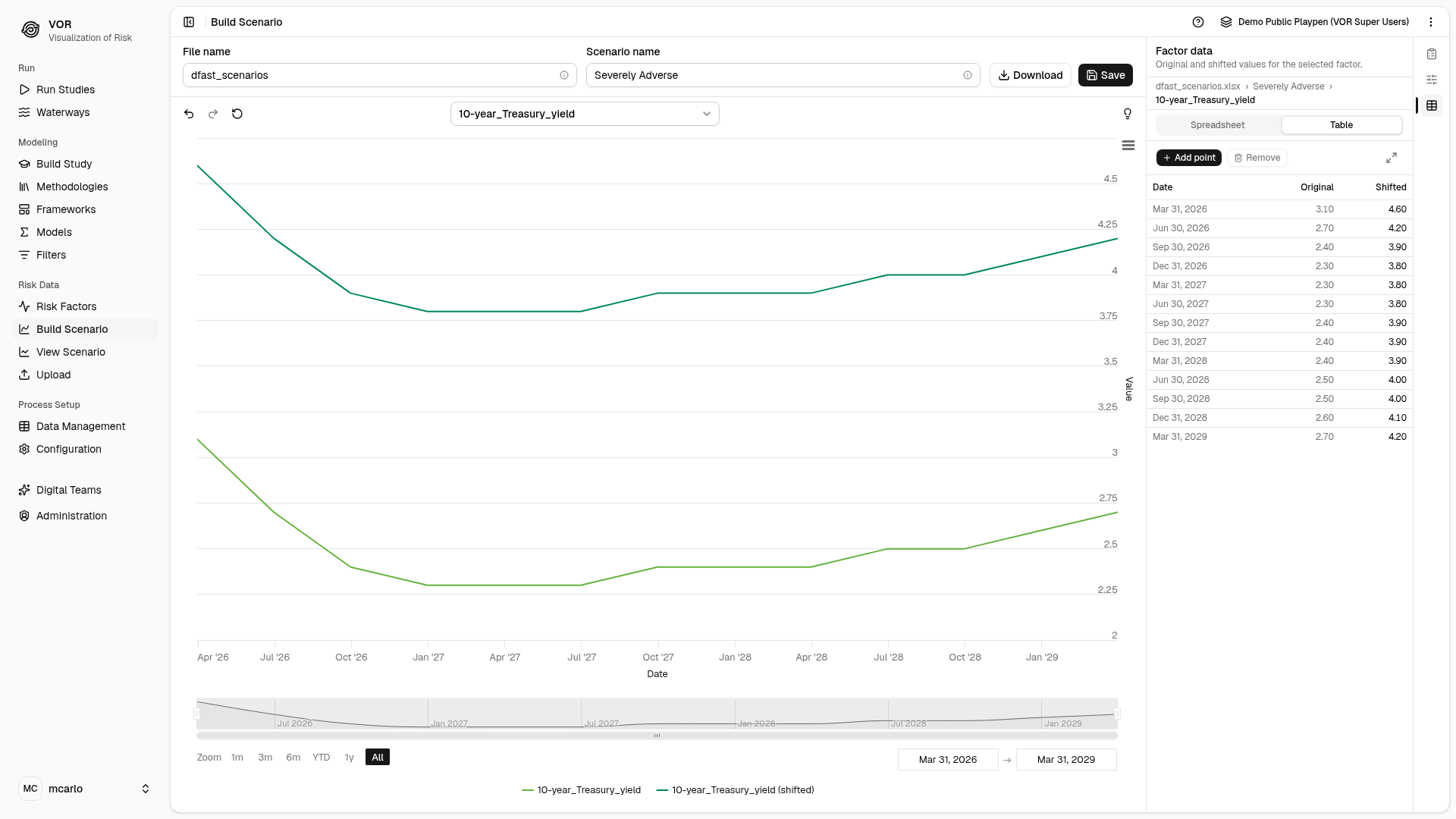
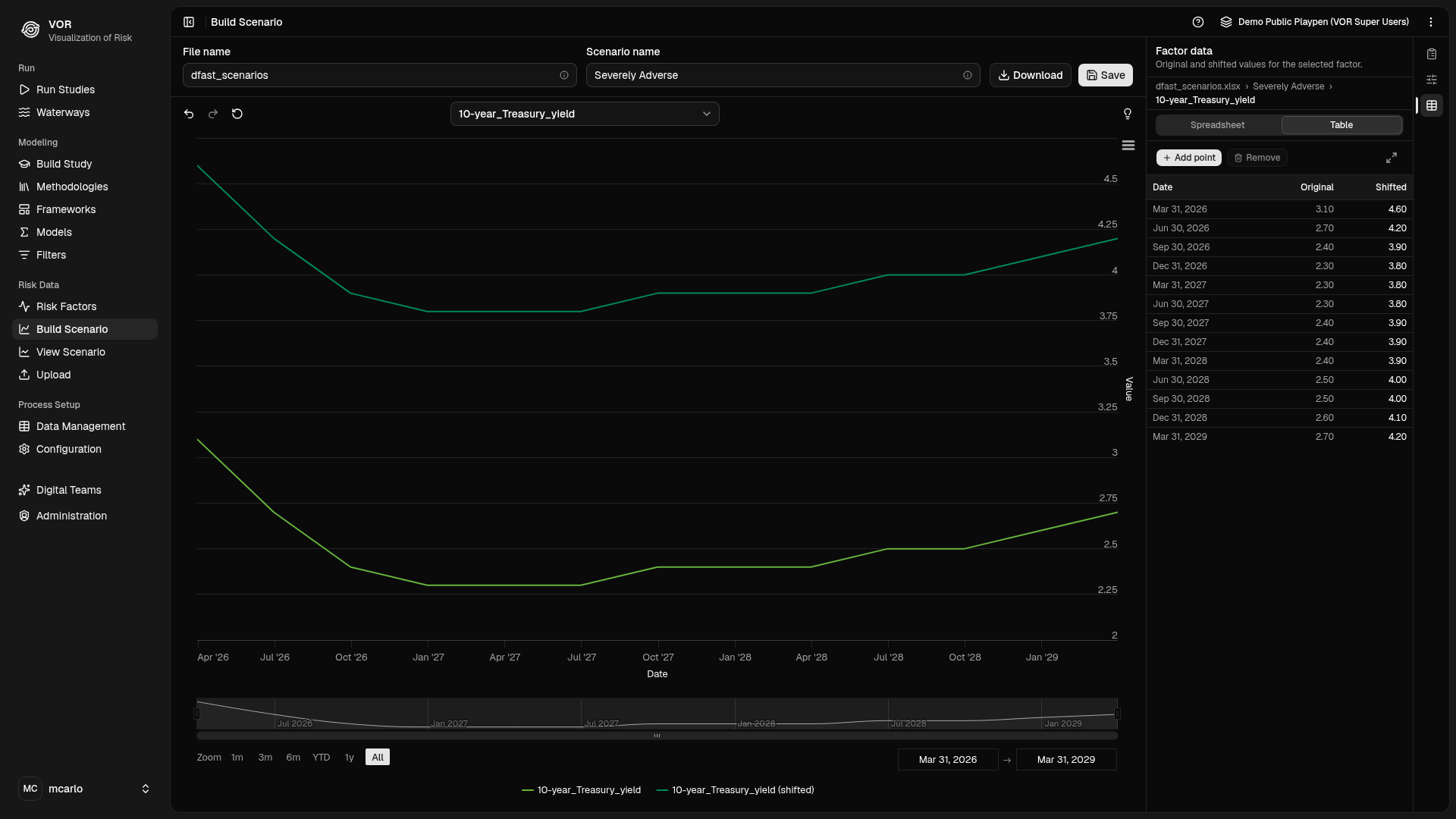
Scenario Builder in your chosen theme: compare an edited curve with its source and inspect the values alongside it. Captures use the DFAST demonstration playpen.
Highlights
A refreshed workspace for modeling and analysis
Shared controls, grouped navigation, and personal appearance settings give the main workflows a consistent feel. Choose a light, dark, or system theme, adjust fonts and colors, and use side panels that adapt to the available space. Dialogs return keyboard focus to the control that opened them, and notifications report activity as work completes. Refresh keeps your place on a list page and asks before discarding unsaved edits. The user guide's interface pages show the same icons and controls as the application.
Studies, frameworks, methodologies, filters, and configuration detail views have their own addresses. A link can take a colleague to the relevant definition, subject to their access permissions.
From run history, repeat a job using its saved options or open those options for review before running it again. Reports can be rerun against their source run. These actions depend on the saved options and source run being available.
Build a stress scenario from an existing curve
Scenario Builder starts with an existing scenario and lets you reshape its factor curves. Drag points on the chart, enter values in a table, or edit through a spreadsheet view. Parallel shifts can be relative or absolute, and a slope change adjusts the curve between selected dates.
For example, start with a baseline interest-rate scenario, apply an upward shift, and change the slope over the forecast period. Compare the edited curve with its source, undo individual edits, or reset the factor. Multiple-point selection supports removing a group of observations together.
Export the result to Excel or save it through the scenario-upload workflow. Saving uses the playpen's configured scenario upload type and permissions; approval remains a separate step where the installation requires it.
View Scenario provides a combined chart or separate factor charts, with coordinated date-range navigation. Factor provenance, legends, and controls for axes, markers, and crosshairs help explain the curves under review.
Follow a process through its inputs and outputs
The Process Viewer connects an interactive diagram with a tree of nested processes. Search for a process, node, queue, or file and open its position in the graph. The connection panel follows upstream and downstream links, helping answer where an input came from and which outputs depend on it.
Horizontal, vertical, and force-directed layouts support different process shapes. Node positions and the viewport are retained at each drill level, so returning from a subprocess preserves the view used to investigate it. Flow animations are configurable and respect reduced-motion preferences.
The run name stays visible while navigating. Open the viewer from study-run history to connect the process structure with its execution.
Work with Digital Teams inside a playpen
Preview
VOR Digital Teams is a preview in v26.2.0. During the preview, it is included at no additional VOR license fee. Its features may change in later releases, and the release notes describe each change. Its packaging and licensing may also change as it moves out of preview, and conversations saved during the preview may not carry forward; the files, models, and other definitions it creates are ordinary VOR Stream content. Digital Teams uses AI and can make mistakes: review its output before you use it in models, studies, reports, or decisions.
A Preview badge marks Digital Teams in the sidebar and the page header, and a notice under the chat input reminds users to review its output. Transcripts copied or downloaded from a conversation carry the same reminder.
Digital Teams works alongside you in a playpen. Ask it to inspect a process, explain a file, create or update a model, or help build a structured model. Its tools can edit playpen files, compile and run processes and studies, inspect runs, and work with the definitions and uploads available to the signed-in user.
A conversation can include files and interactive questions, and a reply keeps streaming while you switch to another conversation. Digital Teams does not pause for confirmation unless you turn on Approve. With it on, Digital Teams asks before it changes files or definitions or starts a run, and you can allow a tool, or every tool, for the rest of the turn.
Reusable personal skills hold instructions and supporting reference files. Write a skill in the interface, upload one, or ask Digital Teams to create it. Invoke a saved skill for a repeated workflow, such as checking a model's assumptions or preparing a standard analysis.
Digital Teams can produce downloadable spreadsheets, documents, presentations, PDFs, and charts. Image, audio, and video support depends on the chat model you choose; helper models can describe or transcribe inputs the chat model cannot read, and may use a different provider. Digital Teams can read a file from another playpen you have access to as a reference. File edits and runs stay in the conversation's playpen, while risk factors it creates or edits are shared by every playpen. A conversation you share with the playpen shows its whole transcript, including anything read from other playpens, to every member of that playpen.
When a run needs attention, Analyze logs in its log panel opens a conversation about that run. Digital Teams reads the run's logs, including the log of the node that failed, and reports the run's health, what went wrong, the likely cause, and what to do next, in plain language. See log analysis.
Log analysis runs in Digital Teams
In versions prior to v26.2.0, Explain Logs used a separately configured AI provider. Log analysis is part of Digital Teams and is available where an administrator has enabled it. Digital Teams uses AWS Bedrock or self-hosted vLLM models; Azure OpenAI and Ollama are not supported.
Your organization supplies the model provider: an AWS Bedrock account, which AWS bills for model use, or a self-hosted vLLM server. FRG does not train or host the models. Digital Teams acts with the signed-in user's VOR permissions, and every signed-in user can use it in the playpens they can access. It supports risk management work; it does not replace professional judgment, your organization's AI governance, or the model risk management that applies to the models it helps build.
Optional deployment
Digital Teams requires administrator enablement and access to a configured model provider. Hosted and self-hosted model choices are available, subject to installation configuration. Some document conversions and spreadsheet formula recalculation require extra host packages. Ask the administrator which workflows are enabled; see Enabling Digital Teams and the inventory reference.
Context usage and an estimated session cost help you follow a conversation's resource use. The estimate covers the chat model and is not a billing record.
Review definition changes in an audit workbook
The change-log export brings together tracked changes to studies, models, frameworks, scenarios, and configuration. It records the available user attribution, a UTC timestamp, the action, and field values before and after the change.
An administrator can select a reporting period, playpen, object type, or user. The resulting workbook provides an overview, a detailed change log, and summaries by object and person. CSV extracts and a machine-readable manifest support further analysis.
Account privileges and run approvals appear as current-state snapshots. They do not represent a history of every permission or approval transition. Processed data rows and uploaded file contents are outside the export's historical scope.
Review the export scope before sharing
The account snapshot covers the whole installation, even when the change log is filtered to one playpen. The run snapshot selects runs by their start date. See scope and limitations when preparing an extract for an audit.
Model and Process Compatibility
Review definitions when upgrading
Installations moving from versions prior to v26.2.0 should review model
output columns, predictor names, legacy queue definitions, Python nodes
that raise exceptions, scripts that use retired debugging options or
check the exit status of vor run, and jobs that run longer than a
sign-in token lasts.
Runs stop at the node that loses data
A run stops when a node loses rows on their way to the next node, and the run's status names that node. Downstream nodes do not continue on partial data, and vor run exits with status 1, so a script or scheduler that checks it sees the failure. The node's log records what was lost and on which queue. Runs that lose nothing finish as before.
A Python node whose worker
function raises an exception ends the run, with the traceback in its log, as a
Go node does when its worker panics. Where a node can safely skip a bad row,
catch the exception inside worker.
After upgrading, regenerate each playpen's queues with vor create queue and its processes with vor create process, so their generated code applies these checks.
Returned model values have explicit output columns
A model node checks that each value returned by its model has a matching column on at least one normal output queue. For a structured model, that means its dependent variable. For a freeform Go model, it means every key in the returned map.
For example, a model returning pd needs a pd column; a model returning
both pd and debug needs columns for both. Keep an internal calculation
out of the returned map if it is not intended for output. Matching ignores
case, and the matching columns can sit on different normal output queues.
Unreturned intermediate values remain optional. A normal run fails when a returned name has no matching output column. It names the unmatched values and queues checked, giving the modeler a specific schema change to make. After changing queue columns, regenerate them with vor create queue, then recreate the process before validating its outputs.
Dictionary and scenario predictors retain their sources
Structured models read dictionary predictors from input data and Base Factor predictors from scenario data. This preserves the source selected in the model definition when a scenario column shares an input's name.
Revalidate models with overlapping names against their intended inputs. Case-only collisions that produce the same generated predictor name require renaming. Free-text framework filters still need care where the dictionary and scenario use the same name; the model-node reference explains the distinction.
Legacy queue definitions use the dictionary format
Data definitions use dictionary.csv for variable
names and types and tables.csv for queue membership. The
table migration command converts the legacy
combined file and preserves a copy of the original.
Use its dry-run and strict options to inspect cross-table type conflicts before applying the conversion. Command-line schema operations can trigger conversion; server-side compilation asks for the migration to be performed first.
Sign-in tokens expire across every service
The compute engine's REST API and the SDK API check each
sign-in token's validity period, as the web application's API does, and refuse
a token once it expires. The vor command line requests a new token for each
command, but a script that reuses a token from
vor create token needs a new one after it
expires.
A job's nodes act with the token of the user who started the job, so a job
still running when that token expires loses its calls to the engine: signals,
dynamic facts, its final log lines, and its statistics. Tokens last 12 hours by
default, and about 11 hours for a job started from the web interface.
Installations with longer jobs raise vor_token_ttl; see the
inventory file reference.
Inspect intermediate values through outputs and logs
Sipping, sniffing, and the former per-observation --trace option have been
retired. For an intermediate-data check, add an
output node for the queue of interest and inspect
the resulting file. Give it an
exec_when flag, such as
exec_when=debug, and it writes only in runs that set that flag, from the
Run Study Options tab or with
vor run --exec-when, so the check can stay in the
process. Node logging and standalone debugging remain available; see
Debugging and Testing.
Removals in a future release
A future release removes the following. VOR Stream does not flag their use at run time, so if your installation relies on any of them, contact FRG support to plan the move before that release.
Plan for upcoming removals
- The
lookthroughpathandinputdirjob options, and the curves, matrices, historical, and scenario-file inputs. - The SDK's fallback that fetches RabbitMQ credentials from Vault when a
node starts outside a run script (
sdk.vault.get_secretsand the sdkapiGetSecretsRPC). Nodes started byvor runare unaffected; a node started by hand must export the run script's RabbitMQ variables itself. - The in-playpen
tables.csvanddictionary.csvas the engine's source of table definitions. The release that removes them imports them into the server once; keep them current until then. - The deprecated sdkapi
GetScenarioRPC and the path-typed playpen fields on sdkapi requests. - Acceptance of unknown job-option keys: a job that carries one will be rejected.
Stability & Quality Improvements
Interrupted queue processing in Go and Python nodes records a run failure and the responsible node when complete output cannot be guaranteed. Status and logs distinguish recoverable connection warnings from failures that require a rerun. This strengthens the evidence available when reviewing study results.
Concurrent job monitoring and persistence have stronger safeguards around live run state. Job-status requests can proceed during result downloads, and final statistics can arrive while a run completes. See study-run history for monitoring and reviewing runs.
Non-threaded nodes use one worker when a higher count is requested and report that adjustment as a warning. Threading remains available for node types that support it; see Job Options.
Waterways updates stream status and Last Ran as jobs finish. The logs dialog
opens on the first click, lists entries in time order, and populates as records
arrive, including records still being collected after a run ends. Each node's
logs are stored under its exact name, including names such as model0.
Output previews show each value as its column's declared type, so text codes
such as 1e1 appear as written in the file, and values that contain quotation
marks preview like any other. Downloads stream from the server, and previews
of different jobs proceed independently.
vor run --study runs any study in a playpen, whatever the weighting of its scenarios. Studies store scenario weights as whole numbers; weights are relative, so a 10/90 split runs the same as 0.1/0.9. Open and save a study whose weights were split in an earlier version to store them in this form.
S3 output nodes write CSV files with each row aligned to its header; rerun vor create process for processes that use them. A report run started from the command line or the API references a run in its own playpen, which keeps each playpen self-contained when it is deleted.
vor show frameworks and
vor show models tables match the other
vor show commands, and the data dictionary page that
vor create queue generates keeps its layout
when a description contains |.
Save actions wait for work in progress. Uploads finish before a selected workbook can be saved, and a configuration group stays locked while its save completes. Edits to an identity provider's settings reach its sign-in configuration on the next deployment; see Authentication.
Access checks cover playpen-scoped operations, and every service answers an expired or malformed sign-in token with a refusal. Users with access to a shared playpen can start their own Digital Teams conversations there. Permissions continue to determine which operations are available.
Documentation and Deployment
Readable playpen documentation
Generated playpen documentation uses Zensical. Process pages list their nodes and subprocesses as links, node pages preserve code formatting, and queue pages list fields in declaration order. Light and dark diagrams match the surrounding page and show field types in text.
Existing playpens retain their vendored styling and editable documentation.
To adopt the new appearance, refresh those files while preserving local
customizations. Regenerate queue pages and diagrams with
vor create queue before rebuilding the site.
For process and user-node pages, preserve hand edits before regenerating the
specific page. The refreshed stylesheet, logo, and site configuration are in
/opt/vor/streamr/template/ on the compute host.
PostgreSQL 18 and supported operating systems
The deployment package supports RHEL 10 and AlmaLinux 10. New managed database installations use PostgreSQL 18.6, and the installer provides an opt-in migration for its managed PostgreSQL 14 installations.
Upgrading the managed database
The PostgreSQL major upgrade requires explicit enablement and enough space for a copy of the data directory plus working space. The automated path is limited to managed PostgreSQL 14 clusters at the default data directory, and application services on other hosts must be stopped before it runs. Follow Upgrading PostgreSQL 14 to 18 for prerequisites, validation, and recovery.
RabbitMQ's default free-disk threshold is 2 GB. Review capacity and operational settings using RabbitMQ in Production. Deployments that update Erlang load RabbitMQ's plugins on the first run. The application also compresses web responses, loads spreadsheet styling with that feature, and serves its fonts from the installation.
RabbitMQ data on a separate volume
The upgrade gives RabbitMQ a fresh data directory, except where that directory is a separately mounted volume. RabbitMQ 4.3 can refuse to start on data an older version left there, so if your installation mounts one, stop RabbitMQ and empty the volume before upgrading. Nothing is lost: VOR Stream's queues hold data only while a job runs, and the deployment recreates the broker's configuration.
Vault 2.2 and Consul 2.1
The deployment package includes Vault 2.2 and Consul 2.1, the current HashiCorp Community Edition releases, with their security updates. Existing secrets, policies, and service registrations carry over; see Third-Party Software for the bundled versions.
Credential and certificate procedures
New administration guides cover changing stored passwords for database node connections, the application database, and RabbitMQ, and rotating Consul TLS certificates. Each guide gives the order of steps, the services to restart, and how to confirm the change.
Replace the packaged Consul certificate authority
The Consul certificate authority supplied with the deployment package expires on May 3, 2027. Installations that use it should create their own, as Replacing the CA describes.